Configure Plan Networks
Connect plan-level network tiers to distinct in-network and out-of-network cost sharing, then verify the tier selected during adjudication.
The plan defines tier identities and cost-sharing behavior. Provider participation determines which tier applies to a claim. Test both sides of that boundary.
Network Model
Provider + plan + network
Tier 1 or Tier 2
Copay / coinsurance
| Tier | Example network ID | Typical cost sharing |
|---|---|---|
| Tier 1 — In-Network | CHO-PREMIER | Lower copay and coinsurance |
| Tier 2 — Out-of-Network | CHO-EXTENDED | Higher cost sharing and deductible |
1. Configure Network Tiers
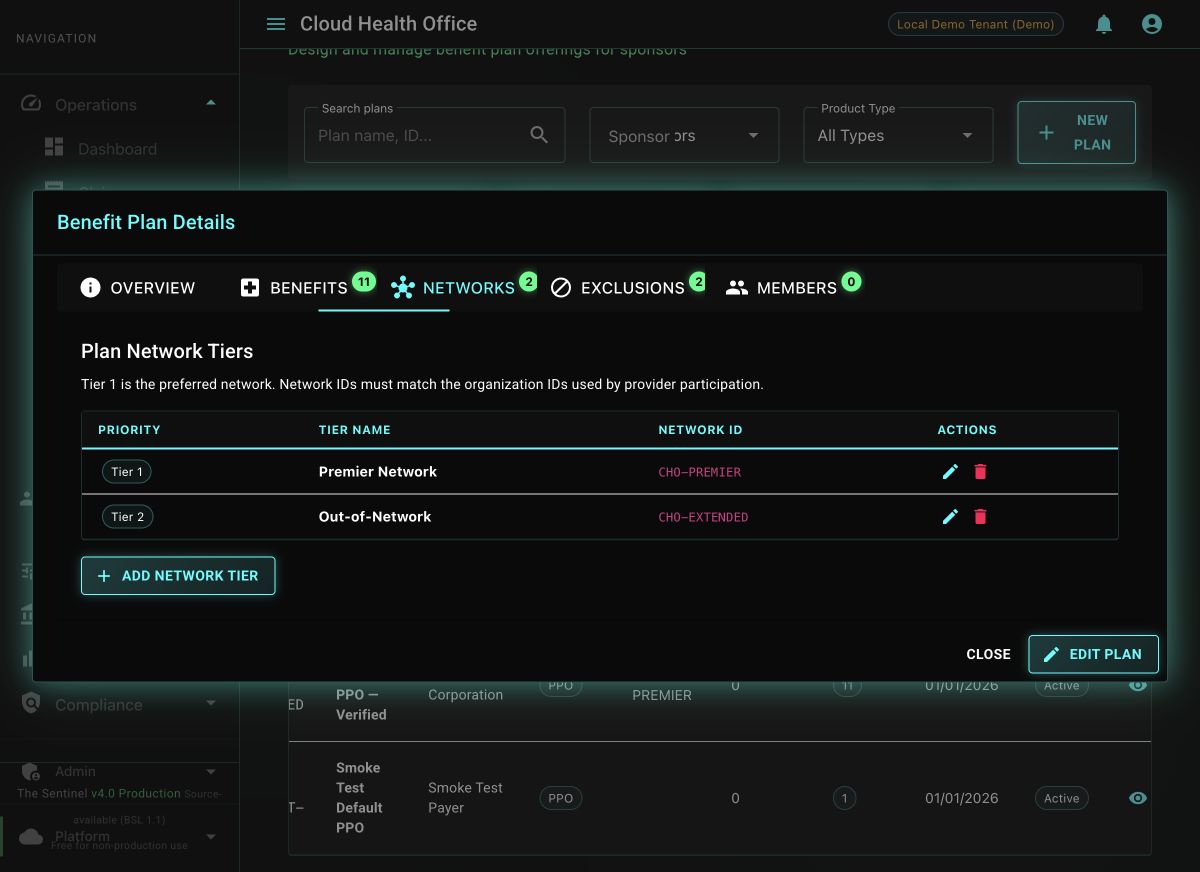
Open the plan in the portal and select Networks. The tier table shows the priority, operator-facing name, and stable network organization ID used to resolve provider participation.
Choose Add Network Tier. Set a unique priority beginning with Tier 1, enter a human-readable tier name, and use the same stable organization ID referenced by provider participation. Duplicate tier levels and network IDs are rejected.
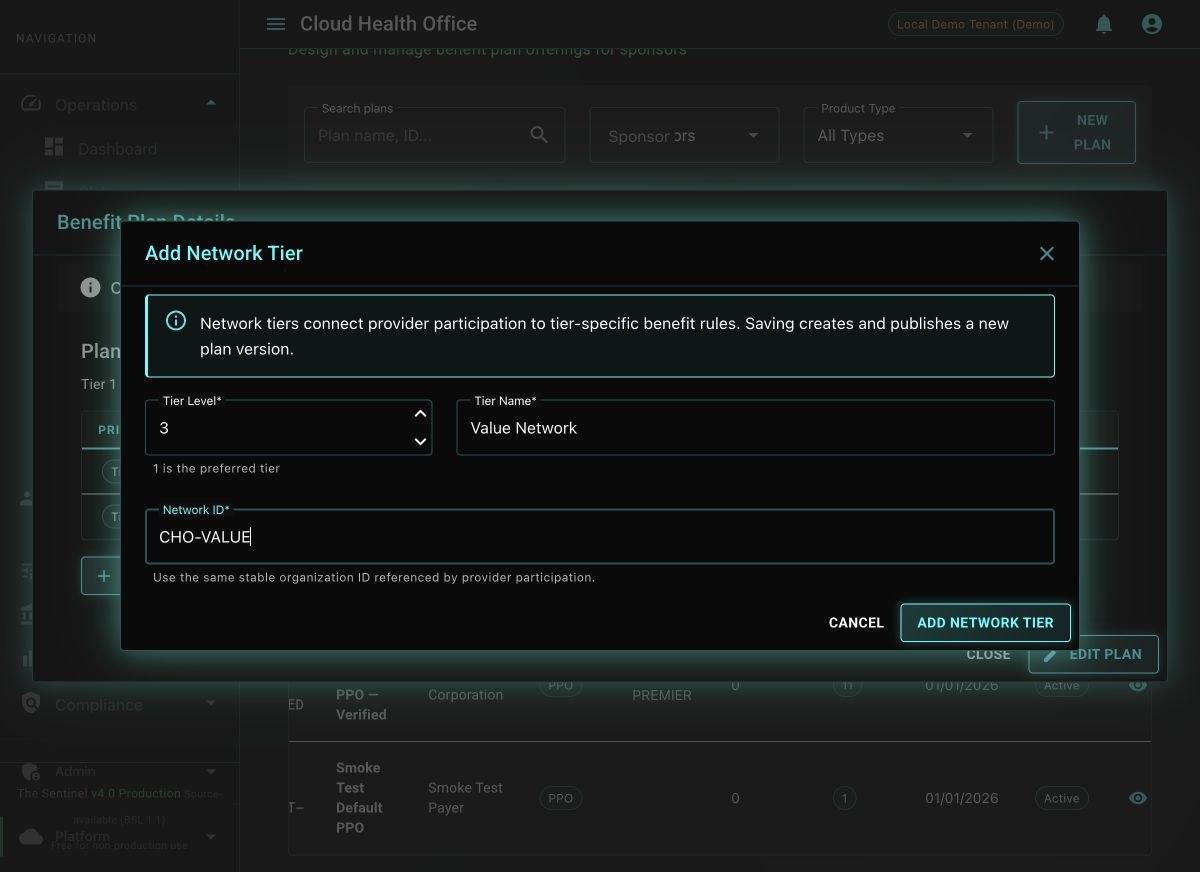
Select Add Network Tier to publish the successor version. Use the pencil action to revise a tier or the delete action to remove it; each operation replaces the complete tier set atomically on one new published version, preserving the prior version for audit.
Optional: automate the complete tier set through the API
For repeatable environment setup, send the complete desired collection. This endpoint uses the same amendment-and-publish behavior as the portal.
curl -fsS -X PUT \
  "${BENEFIT_PLAN_URL}/api/v1/plans/${PLAN_ID}/network-tiers" \
  -H "Content-Type: application/json" \
  -H "X-Tenant-ID: ${TENANT_ID}" \
  -d '[
    {
      "tierName": "Premier Network",
      "tierLevel": 1,
      "networkId": "CHO-PREMIER"
    },
    {
      "tierName": "Out-of-Network",
      "tierLevel": 2,
      "networkId": "CHO-EXTENDED"
    }
]' | jqThe API body is the complete desired tier set. Omitting an existing tier removes it from the successor version; retrieve and review the current plan before automating an update.
2. Inspect the Effective Provider Roster
Below the tier table, choose a plan network tier and an as-of date, then select Load effective roster. The portal resolves the stable plan network ID against provider-service and displays the network’s name, type, line of business, effective period, active version, and date-filtered providers.
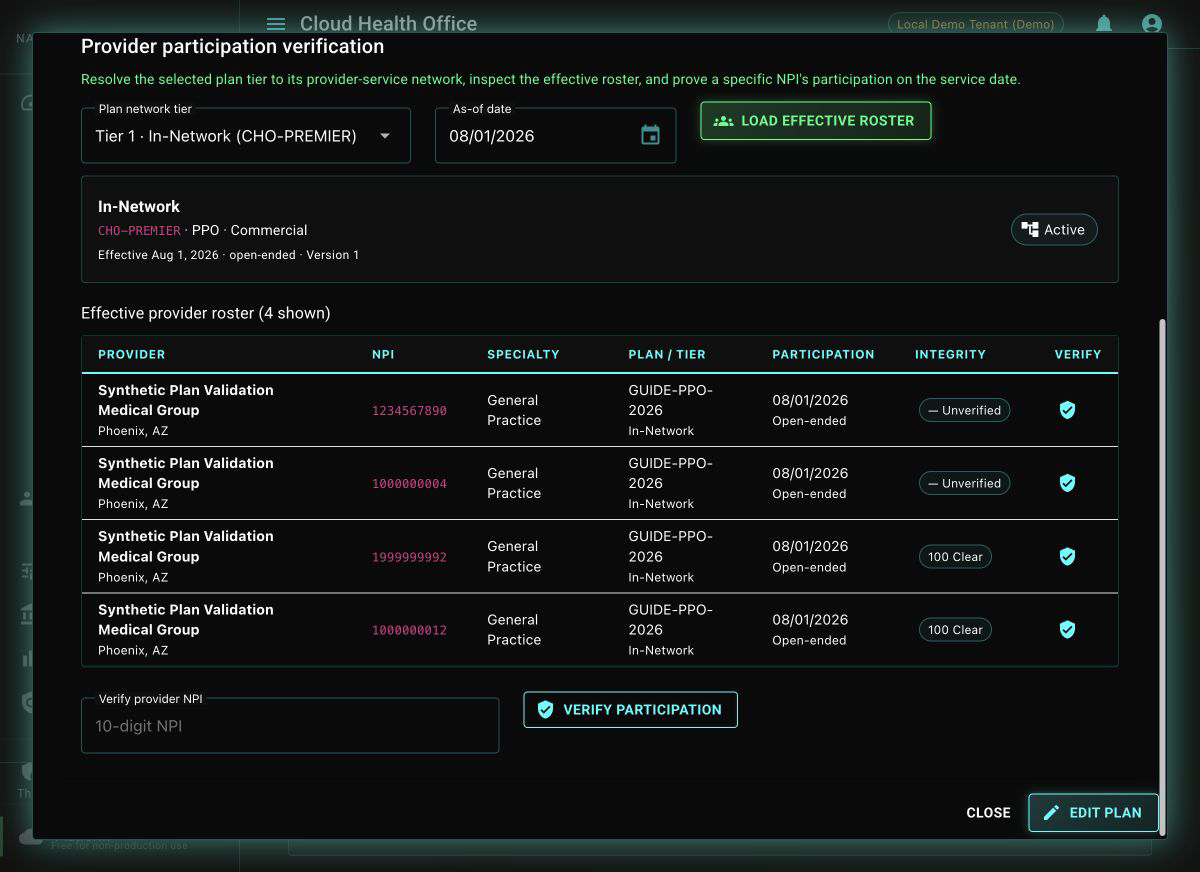
CHO-PREMIER tier resolves to the active provider network and the providers effective on the selected date.Roster rows connect provider identity to the exact participation record: NPI, specialty, plan, network tier, effective dates, and cached integrity status. A provider omitted from the roster may still have a historical or future participation, so use the individual check before concluding that no relationship exists.
curl -fsS \
  -H "X-Tenant-ID: ${TENANT_ID}" \
  "${PROVIDER_SERVICE_URL}/api/v1/networks/${NETWORK_ID}/roster?asOfDate=${SERVICE_DATE}&pageSize=25" |
  jq '{pageSize,nextCursor,providers:[.items[] | {npi:.provider.npi,name:.provider.displayName,planId:.participation.planId,tier:.participation.networkTier,effectiveDate:.participation.effectiveDate}]}'
3. Verify One Provider’s Participation
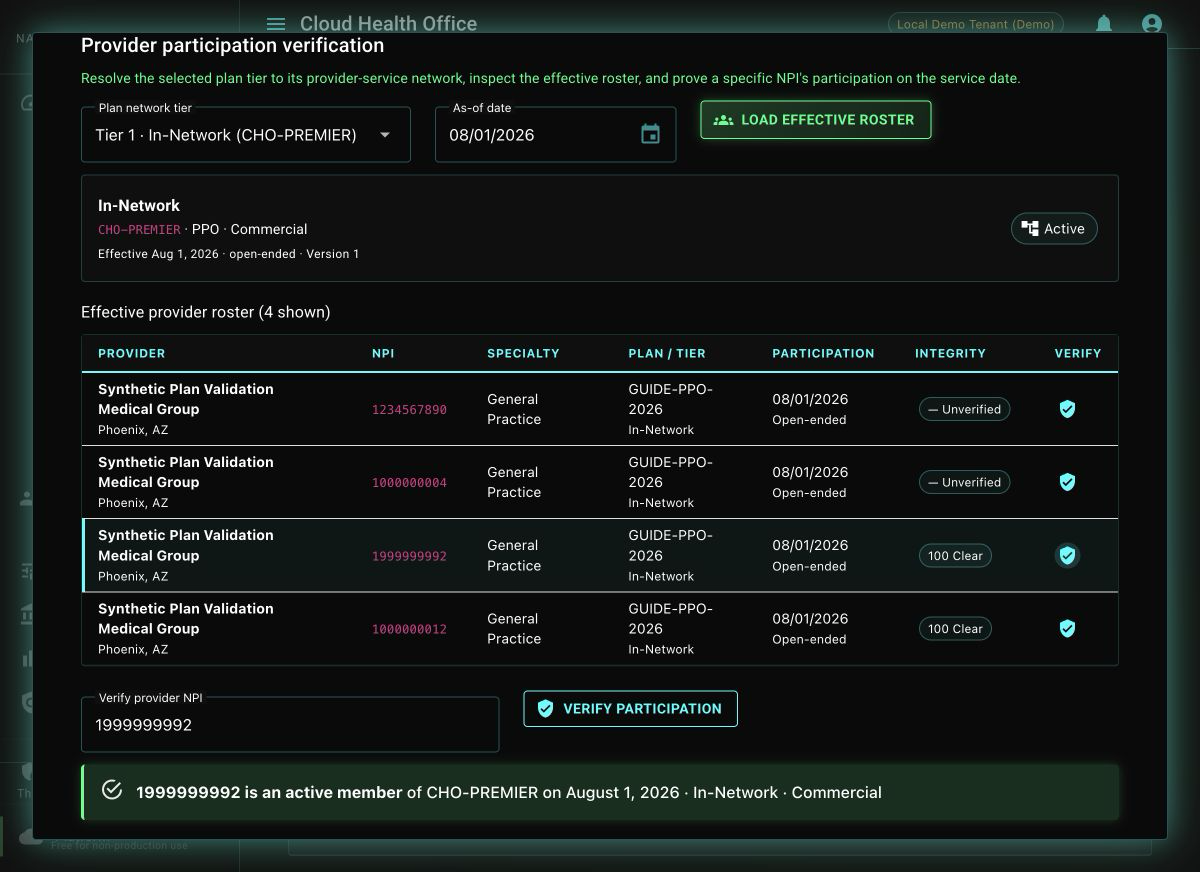
Select the shield action on a roster row, or enter any 10-digit NPI and select Verify participation. This calls the same date-sensitive membership endpoint used by the claims adjudication network-and-credentialing stage.
| Result | Meaning |
|---|---|
| Active member | A participation satisfies effectiveDate <= asOf < terminationDate and may select this network tier. |
| Not active | A participation exists, but it is future, terminated, suspended, or pending on the selected date. |
| No participation record | The NPI has no relationship with this stable network ID in the tenant. |
curl -fsS \
  -H "X-Tenant-ID: ${TENANT_ID}" \
  "${PROVIDER_SERVICE_URL}/api/v1/networks/${NETWORK_ID}/members/${NPI}?asOf=${SERVICE_DATE}" |
  jq '{networkId,npi,isActiveMember,asOfDate,participationStatus,networkTier,lineOfBusiness}'
4. Configure Tiered Cost Sharing
Each covered-service rule can carry both in-network and out-of-network values:
{
  "benefitType": "medical",
  "serviceCategory": "98",
  "description": "Professional Office Visit",
  "inNetworkCopay": 30.00,
  "outNetworkCopay": 60.00,
  "deductibleApplies": false,
  "oopApplies": true,
  "priorAuthRequired": false
}
For deductible-based services, configure the plan’s in-network and out-of-network deductible and OOP maximum fields as well as the service-level coinsurance.
5. Verify Both Adjudication Paths
- Retrieve the member view and confirm that the category exposes the expected In-Network and Out-of-Network values.
- Confirm the provider is an active network member on the claim’s service date.
- Submit a synthetic claim for the participating provider and confirm the in-network tier and lower cost sharing.
- Repeat with a synthetic nonparticipating provider and confirm the out-of-network rule.
- Test an emergency scenario separately; emergency and surprise-billing protections can override ordinary network treatment.
curl -fsS \
  -H "X-Tenant-ID: ${TENANT_ID}" \
  "${BENEFIT_PLAN_URL}/api/v1/benefit-plans/${PLAN_ID}/member-view?serviceDate=2026-07-15" |
  jq '.categories[] |
      select(.serviceCategory == "98") |
{displayName,inNetwork,outOfNetwork}'The stable plan network ID resolves to an active provider network, the roster and single-NPI result agree for the service date, the member view exposes both tiers, and otherwise equivalent claims produce the configured in-network and out-of-network responsibility.
Evaluator Review Questions
- Can the reviewer trace a provider’s participation record to the plan network ID?
- Are network-tier fields present for every service category that permits out-of-network care?
- Do accumulator buckets align with network-specific deductible and OOP values?
- Are emergency and regulatory exceptions covered by explicit test cases?