Contacts, Follow-ups & Documents
Keep the conversation, the claim reference, the supporting file, and the next action connected.
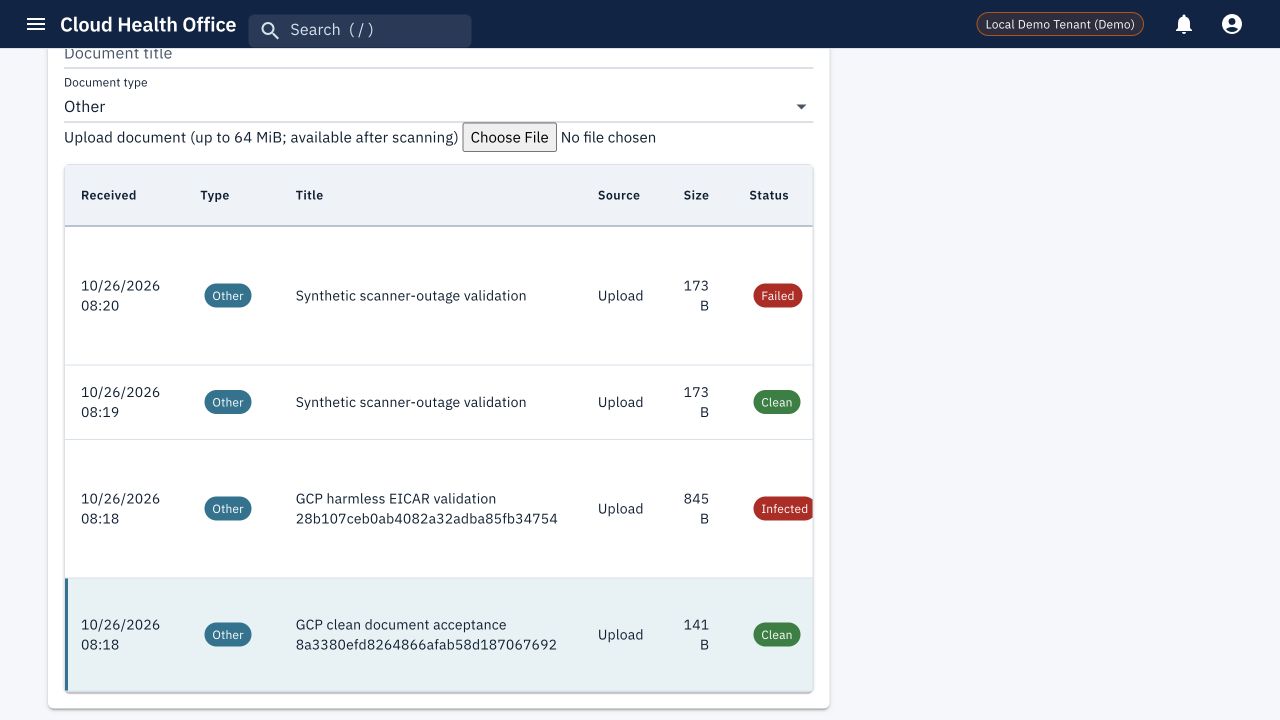
Captured on October 26, 2026 using synthetic records in the GCP demo and labeled local UI previews. The scan examples include deliberate scanner-outage and harmless EICAR test fixtures. No member health information is shown.
Before you start
Sign in to the correct tenant with permission to use contacts and read the records you intend to link. Document access also checks the subject context and tenant. Follow-up work requires the appropriate work permissions and queue membership.
Administrators configure contact reasons for the tenant. Queue memberships are managed under Admin → Work Management. A plan with no configured reasons displays a message in the contact form.
1. Record a contact
- Open Service → Contacts and start a contact using the available intake action.
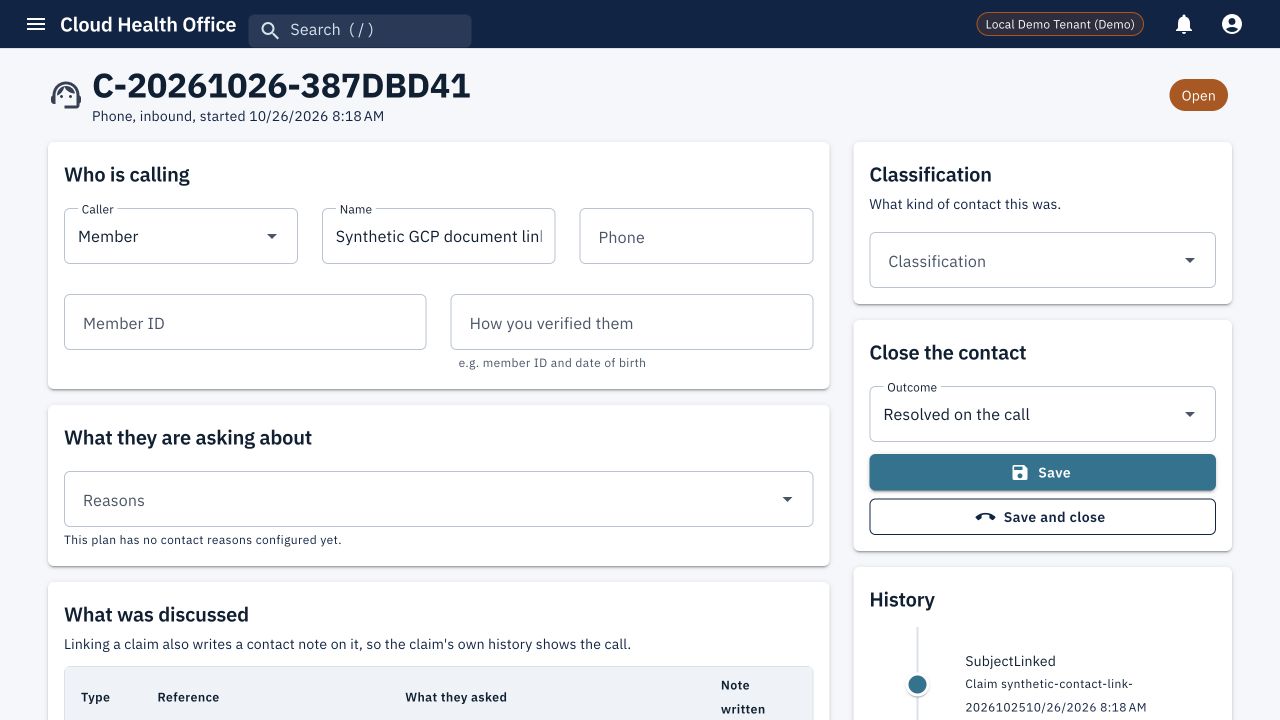
- Record the channel, caller identity, and verification details. Select the applicable contact reasons when configured.
- Use the contact record to capture the discussion, related records, documents, and follow-ups. Choose Save to retain an open contact.
2. Link the claim discussed
- In What was discussed, choose Claim, enter its record ID, and describe what the caller asked.
- Select Link. Check the reference and the Note written indicator.
- Open the claim reference to review the claim and its notes.
Claim linking also attempts to write a contact note to the claim. The operator needs claim-note permission for that step. A saved contact reference alone does not prove that the claim note was written; review the indicator and any error.
3. Upload and open supporting documents
- In Contact documents, enter a descriptive document title and select the document type.
- Choose the file. The demo upload control allows up to 64 MiB; supported formats include PDF, PNG, JPEG, TIFF, and CDA XML.
- Select Refresh to check the scan result. Only a Clean document exposes Open and Preview.
Files are opened through the authenticated portal in the context of the contact or claim. A storage object path is not a public download link.
Understand the scan states
| Status | Meaning | Operator action |
|---|---|---|
| Pending | The scan has not produced a verdict. | Refresh later; downloading remains blocked. |
| Clean | The scanner accepted the file. | Use Open or Preview if authorized for the record. |
| Failed | The scan could not complete. | After scanner service is restored, select Retry scan if authorized. The file stays blocked until Clean. |
| Infected | The scan found a threat; the file is quarantined. | Do not use the attachment. Follow your organization's security process. |
Retry a failed scan
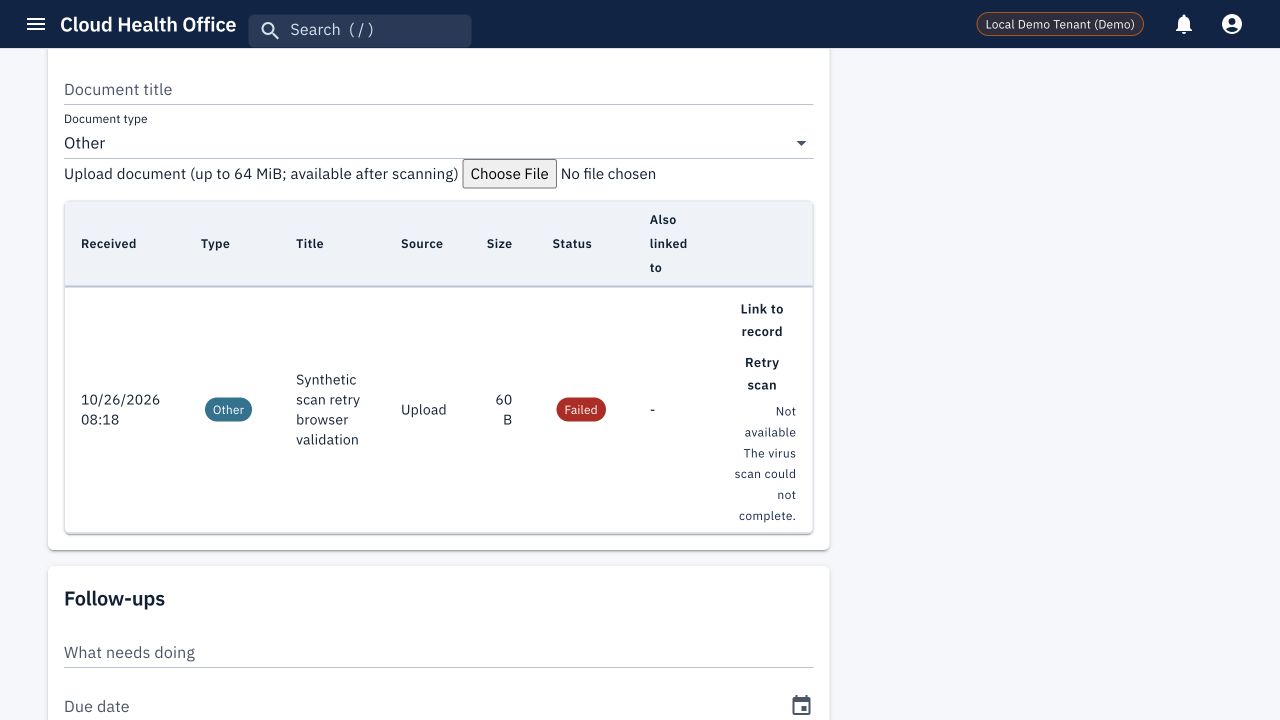
- After scanner availability is restored, find the finalized document with a Failed status.
- Select Retry scan. This action requires document read/write and subject access and is unavailable for documents on legal hold.
- Wait for the result. Clean enables opening the document, Infected keeps it quarantined, and another Failed result keeps downloads blocked.
- If the request is interrupted or reports a conflict, select Refresh before retrying to check the saved status.
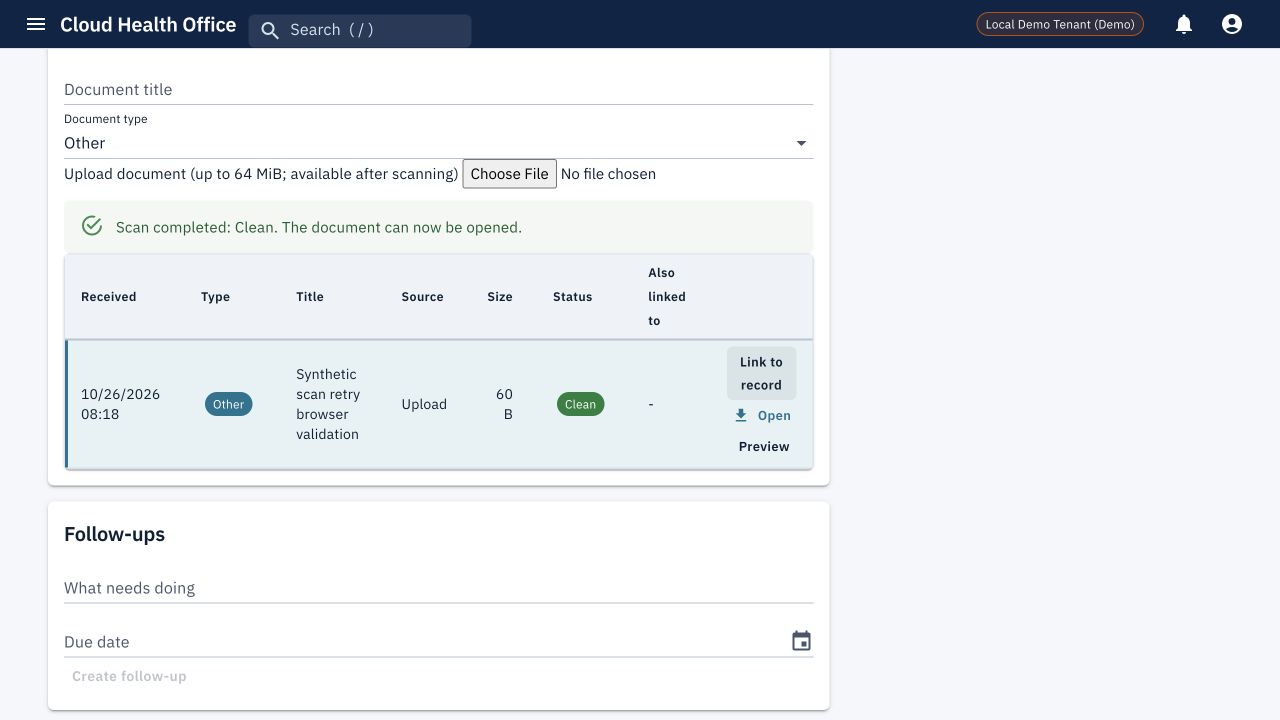
Retries scan the existing stored file without uploading it again. Attempts are audited. Pending uploads, clean documents, and infected documents cannot use this action. Retrying does not bypass quarantine or legal hold.
4. Make the same document available from a claim
A contact-to-claim reference and a document-to-claim link are separate relationships. Linking a claim under What was discussed does not automatically attach every contact document to that claim.
On the existing document row, select Link to record. Choose Claim or Contact, enter the target record ID, and select Add link. The action requires document-write permission and is unavailable for documents on legal hold. After success, check Also linked to. Adding a link does not change scan status or make a blocked file downloadable.
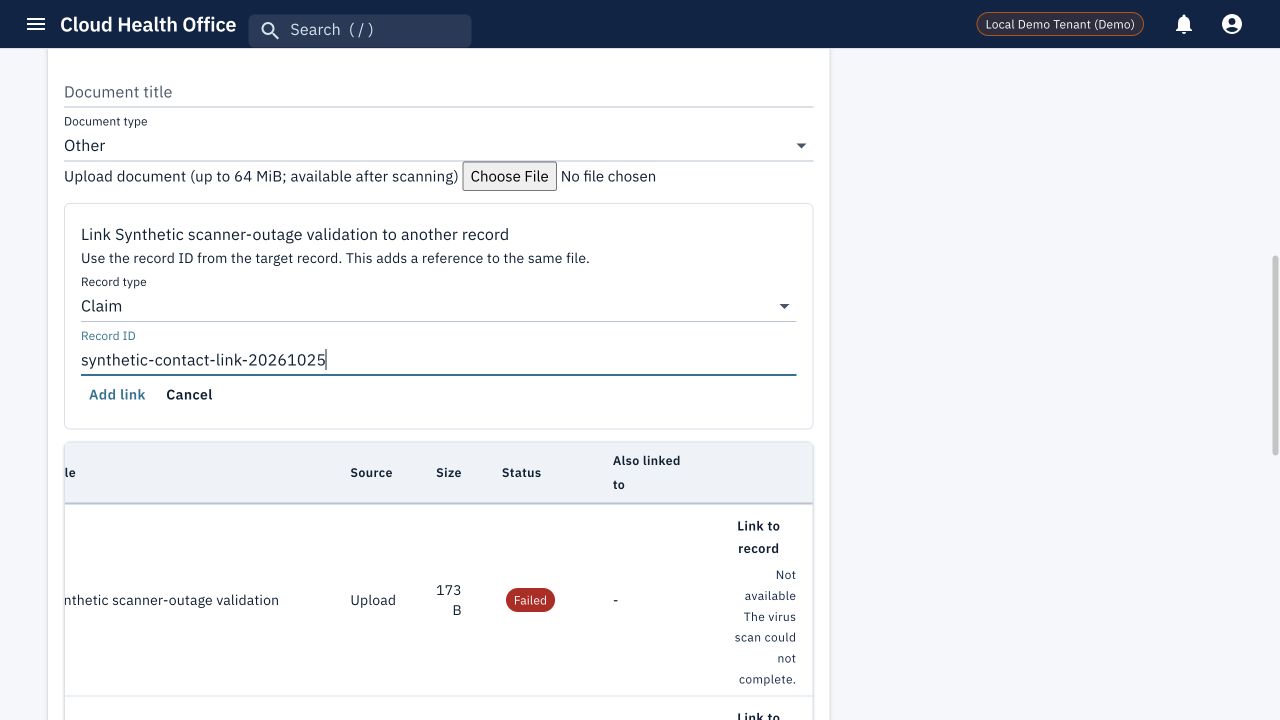
Integrations can also add the link using the document API:
POST /api/v1/documents/{documentId}/links?subjectKind=Call&subjectId={contactId}
Content-Type: application/json

{"link":"Claim:{claimId}"}
Use the existing document ID and the actual contact and claim record IDs. The request must be authenticated in the correct tenant and authorized for both subject kinds; legal hold can prevent a link change.
- Open the claim and select Documents.
- Locate the shared document by its title and size. Check Also linked to for the contact reference, labeled Call in this view.
- Open the clean document from either record. Each request still checks access using that record's context.
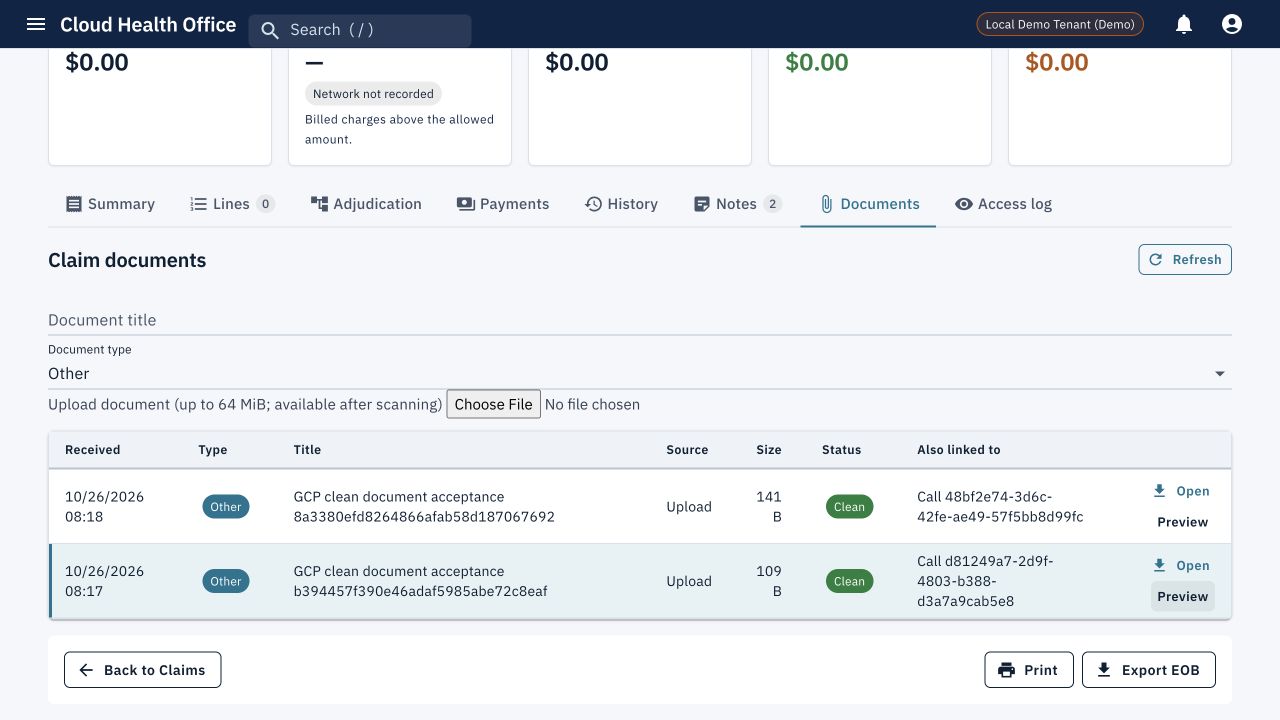
Documents while reviewing a case
Open the member service case from its contact. The Case documents section shows files linked to the original contact, including their scan status, other visible record links, and permitted Open and Preview actions. The same stored file and scan result are used on both pages; opening a case does not copy attachments or add a separate case link.
This section requires contact-read permission in addition to case-read permission. Document read, upload, linking, and scan retry continue to use the original contact's authorization context. Case access alone does not grant document access. Pending, Failed, and Infected files remain blocked.
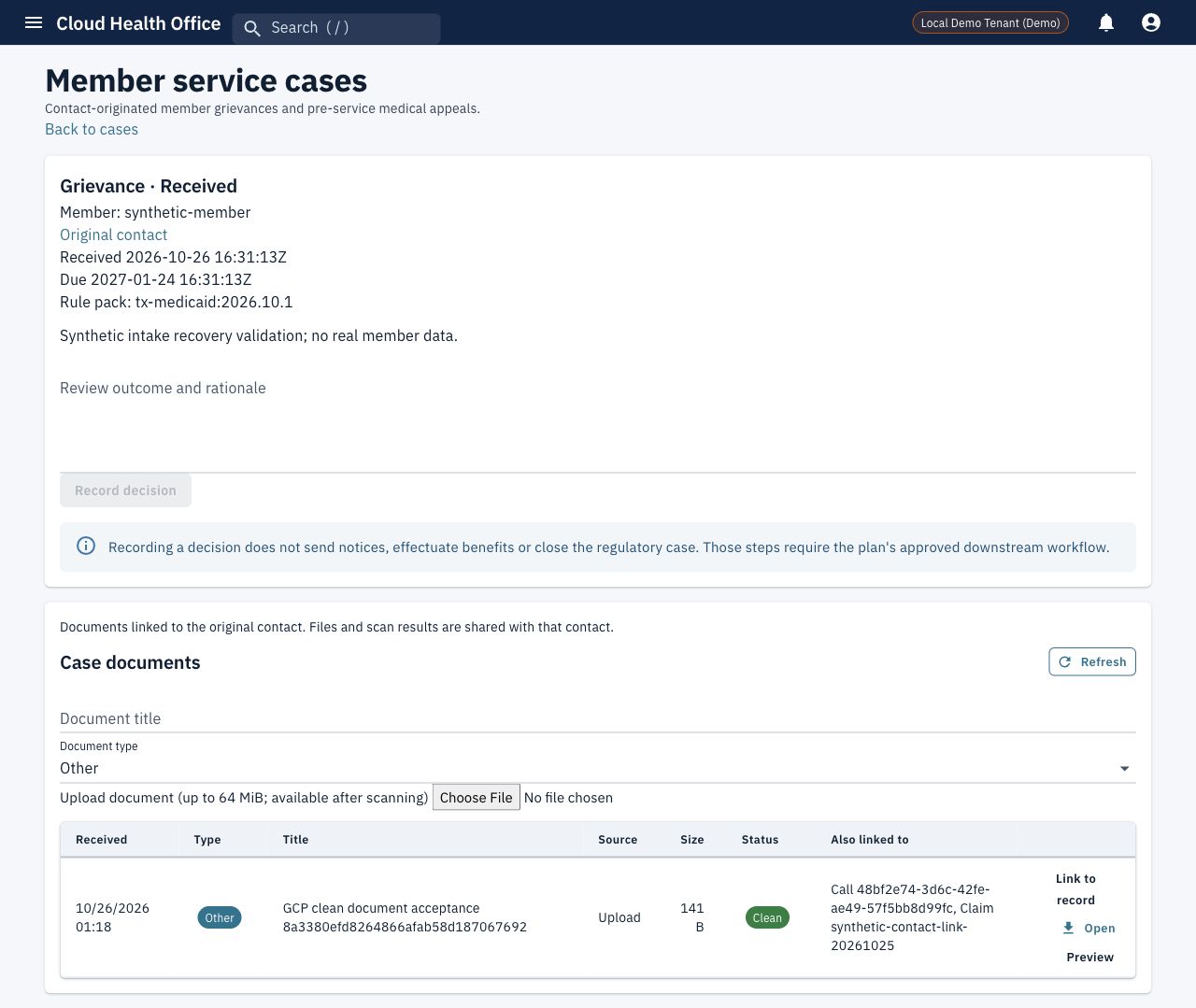
5. Track the next action
- In Follow-ups, enter a specific action under What needs doing and choose a due date.
- Select Create follow-up. Confirm the follow-up appears with its work status. If work-item creation is pending, use Retry pending follow-up when offered.
- An eligible queue member uses My Work → Get Next to acquire the work. Queue membership and role permissions both apply.
- Once the work is owned by the operator, return to the contact, enter a Follow-up resolution, and select Complete follow-up.
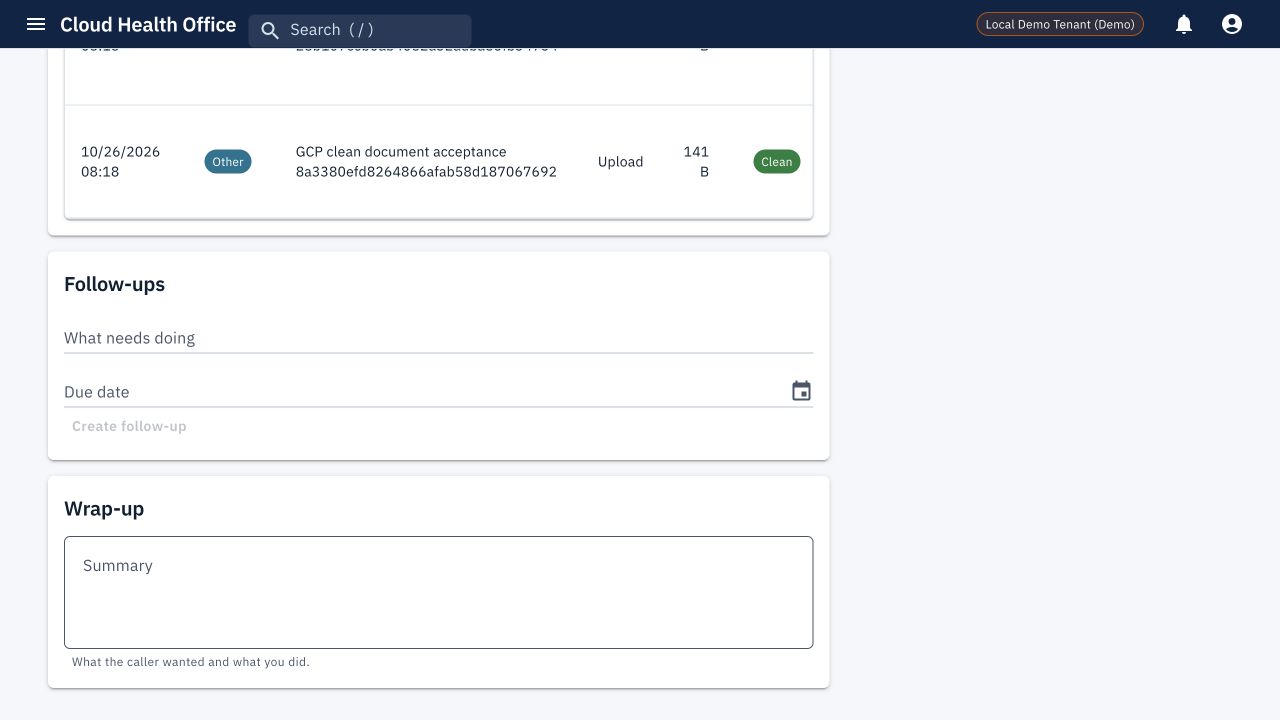
Creating a follow-up does not complete it. Closing the contact and completing its follow-up work are separate actions.
6. Wrap up and close
Write what the caller wanted and what you did in Summary. Select a Classification and the appropriate Outcome, then choose Save and close when the conversation is complete. Classification is required for closure. Check the saved status and history; use the follow-up workflow for outstanding work.
Troubleshooting
| Symptom | What to check |
|---|---|
| Document has no Open control | Check scan status. Pending, Failed, and Infected files cannot be downloaded. |
| Claim has no contact attachment | Verify the document itself has a Claim link. A contact's claim reference is not sufficient. |
| Forbidden or missing document | Check the active tenant, subject reference, and record permissions. Do not work around these checks with storage URLs. |
| Follow-up cannot be completed | Check queue membership, work permissions, current ownership, and resolution text. |
| Contact will not close | Choose a classification and review the validation message before retrying. |